Taking Snapshots
The snapshot dialog is how you move frames or short video clips from a recording or camera feed into an index. Each snapshot becomes an observation in the index, ready to be annotated and used for training.
Press Alt+F12 or click the camera icon in the video controls to open it. The video pauses automatically.
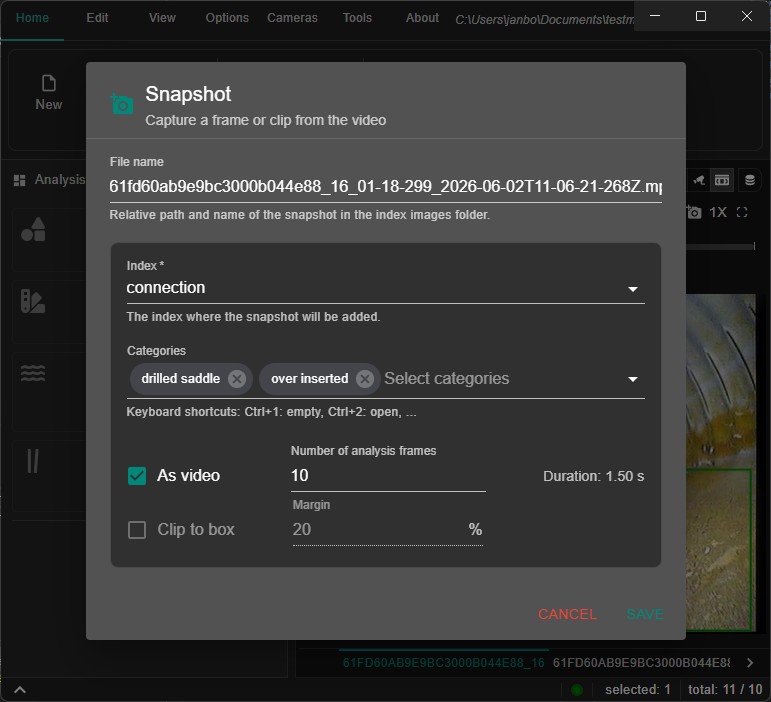
What a snapshot does
A snapshot extracts the current video frame and saves it as an image file inside the index's images folder. It also copies any detection boxes or keypoints that exist at that moment in the video, so the new observation arrives pre-annotated with whatever the model already found there.
If you choose to save as a video clip instead of a still image, a short MP4 fragment is extracted and saved, and all observations that overlap that time window are copied into it with adjusted timestamps.
Positioning the video
Before opening the snapshot dialog, pause or scrub to the frame you want to capture. Use the video controls to play, pause, seek, change playback speed, or jump back to the start of a fragment.
For precise positioning, use Left Arrow and Right Arrow to step by analysis frame. This is useful when you want the snapshot to match the exact frame that Vidsy uses during analysis. For all video shortcuts, see Video Controls.
Dialog fields
File name
The filename is auto-suggested based on the video filename and the current playback position — for example pipe_run_00h00m30s_2026-05-26.jpg. You can edit it freely. The path is relative to the index's images folder, so you can include subfolders (e.g. joints/snapshot_01.jpg) to organise your data.
Index
Choose which index the snapshot will be added to. Defaults to the currently active index. Changing the index also updates the available categories and the clip-to-box availability.
Categories
Select one or more categories for the snapshot. The dialog automatically detects which categories have observations at the current video position and pre-selects them — you can add or remove any.
Keyboard shortcuts while the dialog is open:
| Shortcut | Action |
|---|---|
| Ctrl+1 … Ctrl+9 | Toggle the first nine categories |
| Ctrl+0 | Toggle the tenth category |
| Ctrl+– | Toggle the empty category (when available) |
| Enter | Save |
| Escape | Cancel |
As video
When checked, the snapshot saves a video clip (MP4) instead of a still image. The file extension switches automatically.
This enables the Number of analysis frames field, which controls how long the clip will be. The duration is frames × analysis frame interval and is shown next to the field so you can see the resulting clip length before saving.
All observations that overlap the clip window are copied into the new video observation with their timestamps adjusted to be relative to the clip start. Use this to capture video labeling data — short annotated clips for training models that benefit from temporal context.
Clip to box is not available when saving as video.
Clip to box
When your index is used as a sub-model of a parent index that detects bounding boxes, the Clip to box option becomes available. It crops the snapshot to the region defined by the active parent box rather than saving the full frame.
This matters for training accuracy: during analysis, the child model only ever sees the cropped region that the parent passes to it. If you train on full frames, the model learns from a different view than what it sees at runtime. Clipping at snapshot time keeps training and inference consistent.
When multiple parent boxes are active at the current position, one cropped image is saved per box, with deterministic filenames (snapshot.jpg, snapshot_2.jpg, and so on).
The checkbox is only enabled when:
- the selected index is referenced as a sub-model by a loaded parent index
- at least one parent box is active at the current video position
- As video is not checked
Margin
The Margin field (next to Clip to box) adds a percentage of padding around each clipped box. A margin of 10% expands the crop by 10% of the box size on each side, giving the model a little context around the object. The crop is clamped to the frame bounds so it never extends past the edge.
The default margin is taken from the parent index's attribute configuration if one is set there.
Where snapshots come from
The snapshot dialog can be opened from:
- Recordings — while playing back or scrubbing through a bundle recording
- Camera feed — while a live camera is running
- Video previews in search results — from any video observation already in an index
The dialog behaves the same in all three places. The source video determines what frame is captured and which observations are copied.
Tips
Pause and scrub to the exact frame before opening. The snapshot captures whatever frame is showing when the dialog opens. Use the arrow keys to step to the right moment first.
Let the category auto-detection do the work. When analysis has already run on the recording, categories with detections at the current position are pre-selected. Check them, adjust if needed, and save.
Use video clips for motion-sensitive detections. If you are training a model that needs to understand movement or temporal patterns, save as video rather than as a still. A handful of well-chosen clips is often more useful than many individual frames.
Use Clip to box to match inference conditions. If your project uses a parent–child index structure, always clip snapshots taken for the child index. Training on full frames for a sub-model that only ever sees crops will produce a less accurate model.
Organise with subfolders. The filename field accepts paths, so defects/crack_01.jpg saves into a defects subfolder inside the index images folder. This is useful for keeping categories or recording sessions separate.
For working with annotated video observations after saving, see Video Labeling.
For setting up index structures and model configuration, see Model Configuration.